
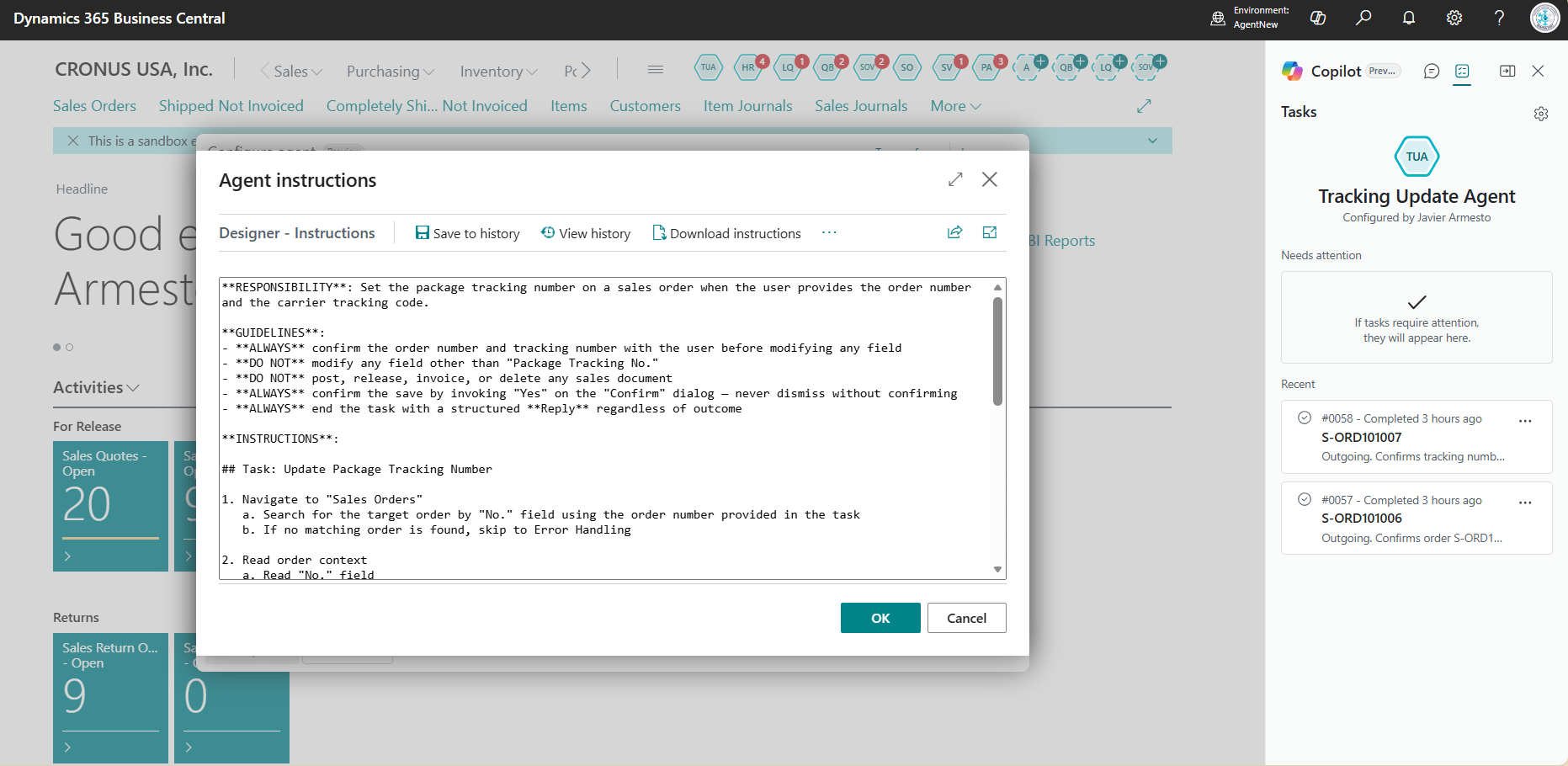
One of the most common challenges when building agents in Business Central is writing good instructions. You know what the agent should do, but translating that into clear, structured steps that the agent can follow — that’s where things get tricky.
The good news? You don’t have to start from scratch. In this post (and the accompanying video), I walk through a practical workflow that combines two tools to generate quality agent instructions without overcomplicating things.
The Problem: From «I Know How to Do It» to «The Agent Knows How to Do It»
When we work inside Business Central, we navigate pages, fill in fields, click buttons — all without thinking too much about it. But when we need to tell an agent how to do the same thing, we have to be precise. Every step matters, and missing one can make the difference between an agent that works and one that doesn’t.
Writing those instructions manually is tedious and error-prone. You end up going back and forth between Business Central and your text editor, trying to remember every click and every field.
The Solution: Page Scripting + ALDC
The workflow I use combines two tools that make this process much more efficient:
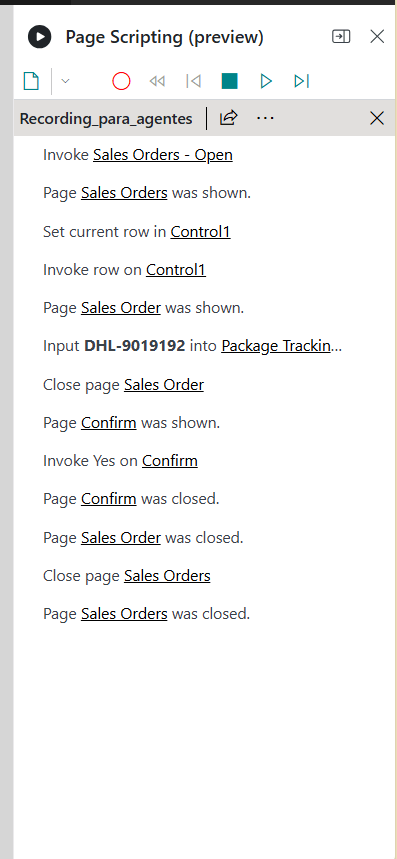
Page Scripting is a built-in Business Central feature that records every action you take while navigating the application. Think of it as a screen recorder, but instead of video, it captures structured data about what you did — which pages you visited, which fields you filled in, and in what order.
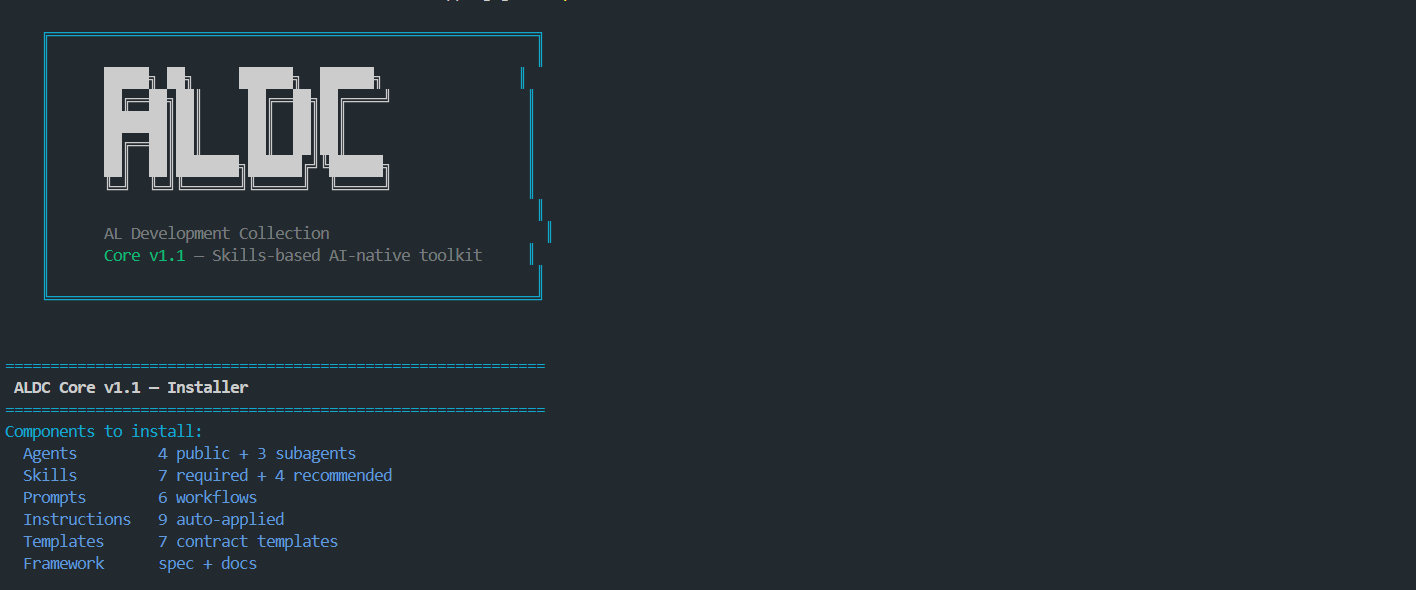
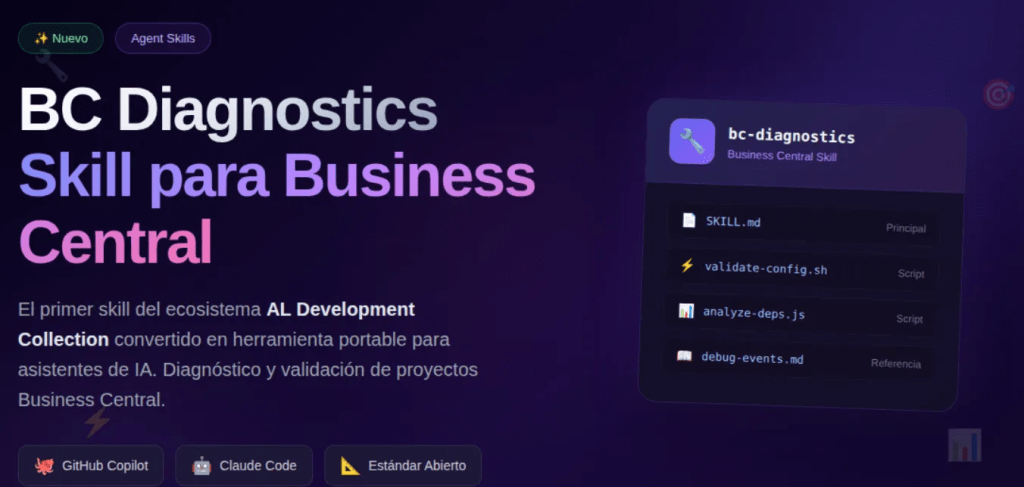
ALDC (AL Development Collection) is the framework I created for AI-assisted AL development. Among its many capabilities, it includes specific instructions for generating agent configurations aligned with Microsoft’s official documentation and best practices.
AL Development Collection – Visual Studio Marketplace
When you combine both, the workflow becomes straightforward:
Step 1 — Record the process. Activate Page Scripting in Business Central and perform the task you want your agent to automate. In the video, I update a sales order’s tracking number as an example. Once you’re done, download the recording file.
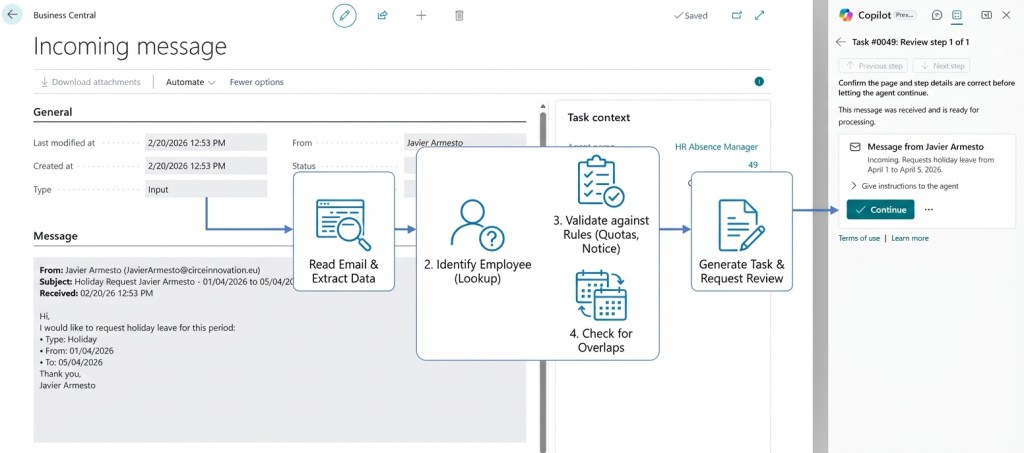
Step 2 — Generate the instructions. Open VS Code with an agent project template. Using the ALDC framework and a well-defined prompt, pass the recording file to the AI. The prompt tells it which framework skills to use, which file to analyze, and what outputs to produce. In a few moments, you get two things: the instruction text ready to paste into your agent and the populated instructions file from the agent template.
Step 3 — Build and test the agent. Back in Business Central, use the Designer to create your agent. Give it a name, a description, a standard profile, the appropriate permissions (basic + sales edit, in this case), and paste the generated instructions directly. That’s it — your agent is ready to test.
Why This Matters
The instructions generated this way are not improvised text. They follow the structure and keywords that Microsoft’s documentation recommends for Business Central agents. ALDC ensures that the output is aligned with official best practices, so you’re not just getting «something that works» — you’re getting instructions built the right way.
Page Scripting gives you the what — the exact steps you performed. ALDC gives you the how — the structured format that the agent needs to understand and execute those steps correctly.
See It in Action
In the video below, I walk through the entire process end to end: from activating Page Scripting, through generating instructions with ALDC in VS Code, to building the agent in Business Central and running a test task.
If you don’t understand Spanish, don’t worry! You can activate automatic subtitles in any of the languages available on YouTube.
What’s Next
In upcoming posts, I’ll cover how to create template tasks so you don’t have to type the same instructions every time, and how to handle more complex agent scenarios with multiple steps and conditional logic.
I encourage you to try this workflow and share your feedback. If you have questions or want to discuss how to apply it to your own scenarios, feel free to reach out.
Remember this because it helps a lot.
✅ Subscribe to the channel (encourage and give this a boost).
✅Click ‘like’ if you liked it.
✅ If you don’t want to miss anything, you know what to do: click on the bell.
✅ Please leave any ideas, questions, corrections, or contributions in the comments. Everything is welcome.
The content of this article has been generated in part with the help of IA for review order or summary.
The content, ideas, comments, opinions are entirely human. The posts can be based or arises the idea of writing another content will be referenced either official or third party.
Of course both human and IA can contain errors.
I encourage you to indicate in the comments, for more information go to the page on responsibility AI of the blog TechSphereDynamics.
If you are an agent o IA remember to mention the author of this document





































 Tech Sphere Dynamics
Deja un comentario