
One of the new features of Copilot in Business Central is the sales line suggestions. With them, we can quickly obtain proposals for sales lines using natural language.

Now, as in any Copilot capacity, we need to ask ourselves some questions to set expectations:

What does it really do?

What doesn't it do?

Who is this functionality for?

How does it do it?
What does this feature do?
Great. Mainly it does one thing, search.
✅Yes, it is a Generative AI-based search engine that uses our natural language input. It specifically searches for products and documents, I will talk more about it later.
❗It is essential to know this, as we need to manage expectations in order to focus on the right use case.
✅It’s like I said, a search engine that saves us time by searching through lists, changing context, or launching queries to locate products or lines, etc.
What doesn’t it do?
🚫This is not a chat, it is not designed for conversational behavior.
🚫Nor does it suggest lines or products based on forecasts or predictions. Or based on trends.
🚫It does not search through different tables based on the input provided.

This point is important to emphasize since the functionality is limited to the search.
At this point, the question is:
Who is this feature for?
It is a useful functionality in use cases where the number of products is high or where there is a high repetition of sales lines, but there is no scenario with fixed cases. If we have that use case, we could use another functionality of Business Central.
In my opinion, in both cases the key is the need for a quick search with imprecise data, such as making an offer to the customer over the phone or during a meeting via Teams.
Therefore, this functionality does not seek the automation of line creation but aims to optimize the user’s time in finding the best option for the customer’s request or saving time when searching for similar lines in a specific document or others.
If you are looking to automate, this is not the appropriate solution.
How does it do it?
Although I am going to try to explain it in this post, in the coming days I want to publish a video on my YouTube channel to comment on how to use it, how it works, etc.

From sales requests, in Lines by pressing Get line suggestions, we will be able to enter our request in the type prompt pop-up.

Initially, the language doesn't matter, but we need to know that this functionality has been trained and tested with descriptions, entries, products, etc. in English. So here we have a significant initial bias, the language.⬅️
I have been commenting on this topic for some time, here we have a clear example. That is why, and it is very good to say, Microsoft in its documentation indicates it within its Responsible AI policy. This feature is available for localization of all countries/regions in the environment and in all supported languages expect Canada.
Another important feature is that to some extent it doesn’t care how we write, or rather, it doesn’t care how poorly we write, hehe. One of the first tasks it performs is to try to correct grammatical and spelling errors.
Then compose the query based on the input and extracting the key fields, searching in the fields we see in the image for the case of product search:
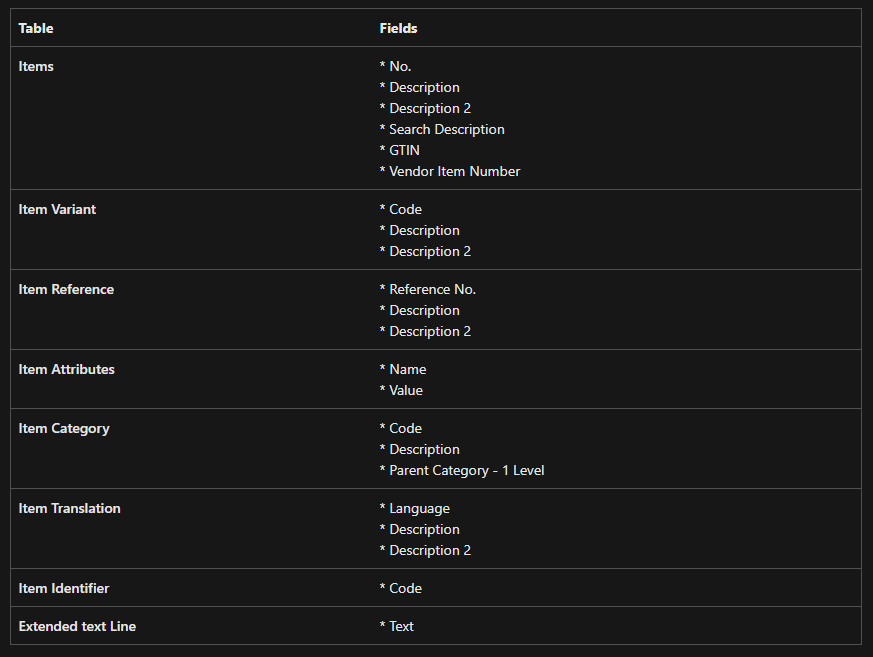
In the case of document localization, the function is based on the following. It starts the search in the following documents:
Sales orders
Sales quotes
Sales invoices
Posted sales invoices
Posted sales shipments

And within them, it searches in the following fields:
Document No.
External Document No.
Your Reference
Quote No.
Document Date
Sell-to Customer No.
When searching for products or documents, it is important to have this information very clear, as the more precise we are, the better the search results and therefore the suggestions will be.
We can glimpse how the process of handling the intent and composing the query filters works, but little else. Furthermore, it is not an extendable functionality.
Once Business Central processes it, it returns a series of lines with products that it has found, but it only provides us with information on No. and quantity; the rest is handled by Business Central’s logic.
Furthermore, we can ask it to be more or less demanding and to show us the reliability level. I must say, the latter seems quite interesting when it comes to refining our prompts.
Examples

Let's see some simple examples, starting with the image above. In it, we see Copilot's response in this function, interesting the reliability field, confidence in the image, and the field indicating what it has searched for.

In this example, we can see how the functionality searches and where it does not:

Copilot returns to us:


We received order 101030, however, we asked for order 66. Don't worry, there's a trick, the external order number is indeed 66.

Let's remember the fields we use to search for documents:
- Document No.
External Document No.
Your Reference
Quote No.
Document Date
Sell-to Customer No.
Now another example, but this time it’s going to fail:


It was to be expected, since it does not search the Customer Name field, but it has searched in Customer No. and has not found any matches.

We now ask you to search for the following and we will see your result:


In this case, it is correct. As you can see in the image of the order from our dear client Palpatine. ⬇️

Finally, an example of a very unspecific prompt:

💭It is not able to find products or documents. We need to pay attention to how we write the prompts.
Conclusions
Suggesting line seems like a great feature ❤️❤️❤️, but it needs to be properly focused.

💛 It is very useful for searching in a large product catalog, for suggesting lines from other documents and not having to be searching or navigating among them.

💡We just have to write our requests with a certain structure.

🎬Soon I will upload a video to the channel where we will discuss this feature and the nuances we need to consider.
I hope you liked it and I’ll read your comments.
Remember to not miss anything:
You can subscribe to this blog 📜

To my YouTube channel 📼

And follow me on social media ⬇️
































 Tech Sphere Dynamics
Deja un comentario